Start in the SOOLRA app
Open a game from the built-in library after pairing. The app supports touch play as well as the SOOLRA controller.
 Back to SOOLRA™
 SOOLRA™ SUPPORT
Real product guides. Clear answers.
Everything you need to get your controller case ready for game time.
01 / START HERE
Watch the guide, or jump straight to the step you need.
Third-party game titles shown are demonstrations and are separate from the SOOLRA app’s built-in library.
Charge. “I did plug it in via USB, and it is charging. There’s a little indicator light to let you know it’s charging. Red means that it’s currently charging. Green means it’s fully charged.”
Pair. “Hold both Select and the Start button together until something flashes. And as you can see, it is flashing. SOOLRA Controller — it does show up. It connected pretty automatically.”
Fit. “We’ll slap this on. Fits very easily. We can slide this bottom piece on. Locks into place. And this is what the case looks like.”
Play. “Let’s actually remove this. Let’s see if it slides off. Slides off pretty easily. Let’s go into our SOOLRA emulator.”
The demonstration shows the controller section sliding off, turning around and attaching below the screen. A USB-C cable and phone are used for the demonstration; neither is included with the case.
You’ll need your compatible iPhone and a USB-C charging cable. The physical package contains one SOOLRA controller case; the phone and cable are not included. The SOOLRA app is downloaded separately.
THE COMPLETE USER GUIDE
Six clear chapters. Real product demonstrations. Keep the illustrated guide for later.
Choose the case made for your exact iPhone model. The phone and USB-C cable are not included.
Get ready. Get ready to play with SOOLRA. This guide takes you from your first charge to your next game. Before you begin, match your case to your exact iPhone model. The phone and USB-C charging cable are not included.
Charge. First, charge the controller. Connect a USB-C charging cable to the port on the controller. A steady red light means charging. Steady green means fully charged. The controller and your iPhone charge separately.
Pair. Now, pair it. Hold Select and Start together for about three seconds, until the blue indicator flashes quickly. On your iPhone, open Settings, then Bluetooth. Select SOOLRA controller. A steady blue light means you are connected.
Fit & play. Fit the upper case to your matching phone, then slide the lower controller section into place. To play, slide that lower section off and attach it in the play position. Follow the movement shown here. Never force a case that does not fit.
Controls. Your controls include a D-pad, four action buttons, and two analog sticks. Pair first, then open the SOOLRA app or a game that supports Bluetooth controllers. Available controls and features vary by game.
Reconnect. For your next session, press Select and Start together for about one second. Keep the paired iPhone nearby with Bluetooth on. Slow flashing blue means reconnecting. Steady blue means connected. The controller sleeps automatically after about five minutes of inactivity. If red flashes quickly, recharge. For more help, contact SOOLRA support.
Setup, controls, light indicators and troubleshooting.
English · 7 pages · PDF · 867 KB
02 / CHECK YOUR MODEL
Find your model in Settings → General → About → Model Name. Match it to the model group on your SOOLRA order or packaging.
Three separate case sizes. These models do not fit Plus or Pro Max. Don’t choose by screen size alone.
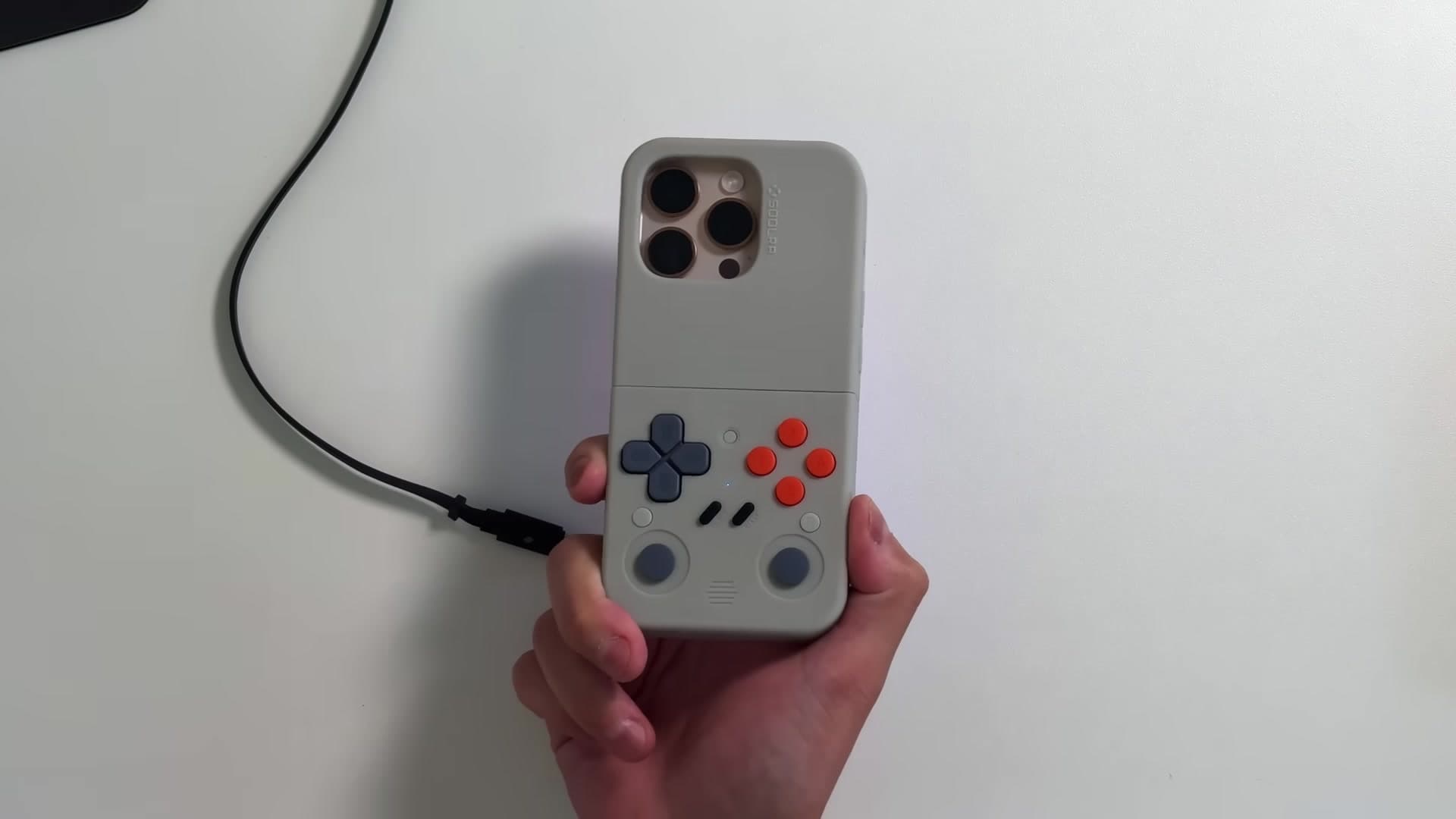
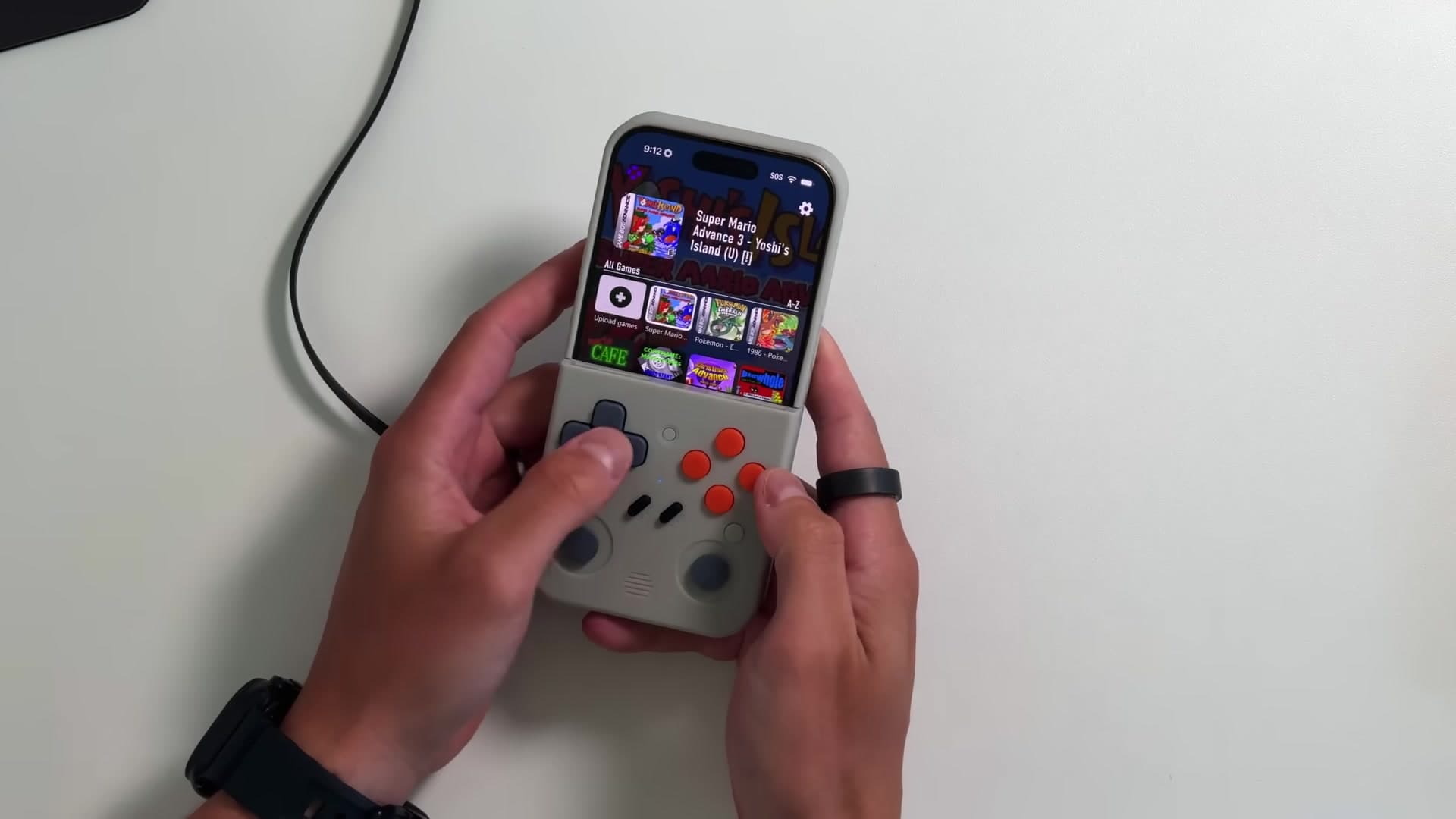
Gray case for iPhone 16 Pro shown. Screen content is a demonstration.
03 / YOUR APP & GAMES
Use the SOOLRA app for its retro library, saves, customization and adjustable play area. Other compatible controller-enabled games use their own apps.
Get SOOLRA on the App Store (opens in a new tab)Requires iOS 16.6 or later. Check the App Store for current requirements.
Open a game from the built-in library after pairing. The app supports touch play as well as the SOOLRA controller.
Use the app’s screen-resizing feature to position the play area above the controller.
Other games must support Bluetooth controllers. Availability, inputs and any purchases or subscriptions depend on the game.
04 / SEE IT IN ACTION
Short demonstrations of the real product. Press play when you’re ready.
See the case in carry position, the lower section flip into play position and the physical controls in use. The demonstration also introduces supported landscape and bigger-screen play.
First, a game is shown across the phone in landscape. Then, SOOLRA is used as the controller while gameplay appears on a TV. Game, app, device and display compatibility varies.
The extended product video covers unboxing, setup and gameplay. It reflects the product and app at the time of recording; use this page for current setup and fit guidance.
Product supplied for the original walkthrough. The quick start uses excerpts from that video. Third-party games shown in demonstrations are separate from the SOOLRA app’s built-in library. Phones, TVs and other accessories shown are not included with the case.
05 / QUICK ANSWERS
A few checks solve the most common setup questions. Still stuck? We’re here to help.
Contact SOOLRAWith your previously paired iPhone nearby and Bluetooth on, press Select and Start together for about one second. Slow flashing blue means reconnecting; steady blue means connected. The controller sleeps automatically after about five minutes of inactivity, and powers off if it does not establish a connection within about two minutes. A fast red flash means the controller needs charging.
Charge the controller first. Keep it near your iPhone, turn on Bluetooth in Settings, then hold Select and Start together for about three seconds until the blue indicator flashes quickly. Look for SOOLRA Controller in the device list. If it still does not appear, tell us your exact phone model, iOS version and what the indicator is doing.
Check that your game supports Bluetooth controllers and whether it has a controller setting. Open the game after pairing and try a title in the SOOLRA app to help identify whether the issue is specific to one game. Controls and supported inputs vary by game and software version. If you contact us, include the game name and which controls do not respond.
Connect a USB-C charging cable to the controller’s USB-C port. The indicator is red while charging and green when fully charged. The cable is not included. If the indicator does not light, check that the cable and power source work and that the connection is secure. Send us a description of the indicator behavior if you still need help.
No. The rechargeable battery powers the controller. SOOLRA is not a battery case or a power bank. Your phone and the controller are charged separately.
Check your exact model in Settings → General → About → Model Name, then compare it with the model group on your SOOLRA order or packaging. Standard, Pro and Pro Max are different. Do not force a case that does not fit. Share your phone model and SOOLRA model with our support team.
The SOOLRA app supports screen resizing. Adjust the play area in the app to suit the controller’s position. Other games use their own screen layouts and may not offer the same adjustment.
The SOOLRA app supports compatible NES and GBA files that you lawfully own or are authorized to use. Compatibility depends on the file and app version. Additional imported games are separate from the app’s built-in library.
The video shows a compatible bigger-screen setup with SOOLRA as the controller. Your game, app, phone and display must support the chosen setup. The case does not add TV output to an unsupported app or device. For help, include your phone, TV model, game and how you connect the display.
For an Amazon order, start with Your Orders for delivery, cancellation and return options. For product or warranty help, contact SOOLRA below and include your order source, order number and the issue. See our Product Policies for the applicable terms.
06 / WE’RE HERE TO HELP
Your exact iPhone model, iOS and app version, order source and a description of what happened help us understand the issue. You can also email info@soolra.com.